OTOBO / Znuny Setup Guide
OTOBO / Znuny Setup Guide
Section titled “OTOBO / Znuny Setup Guide”Open Ticket AI connects to OTOBO/Znuny using a restricted WebService and a dedicated technical user. Follow these steps exactly to ensure the automation works reliably and securely.
1. Create the User open_ticket_ai
Section titled “1. Create the User open_ticket_ai”This user is used exclusively by the Open Ticket AI engine. It must not have admin permissions. It must have only exactly the permissions required for your automation.
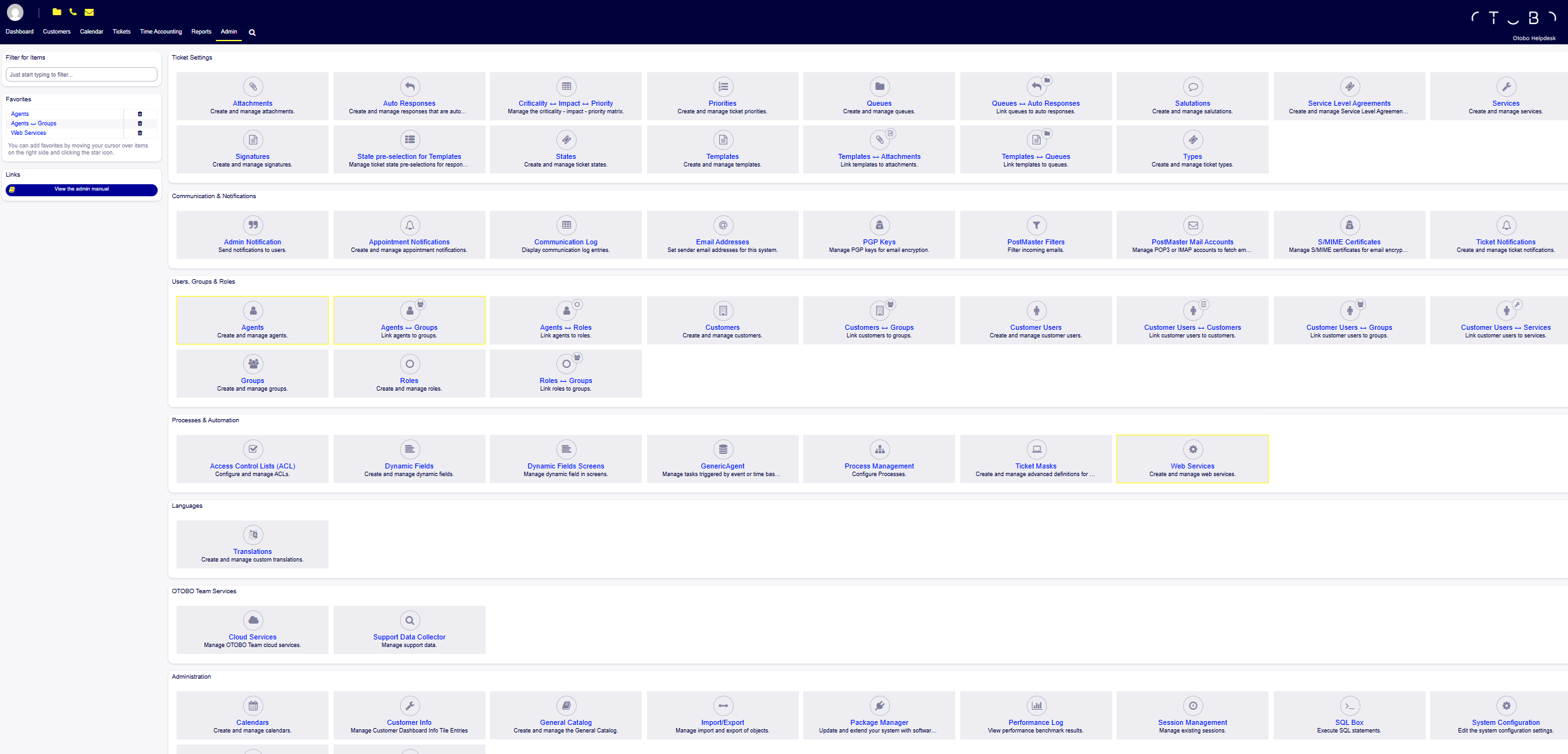
Step 1: Go to Admin → Agents
Section titled “Step 1: Go to Admin → Agents”Use the OTOBO Admin navigation:
Step 2: Click “Add Agent”
Section titled “Step 2: Click “Add Agent””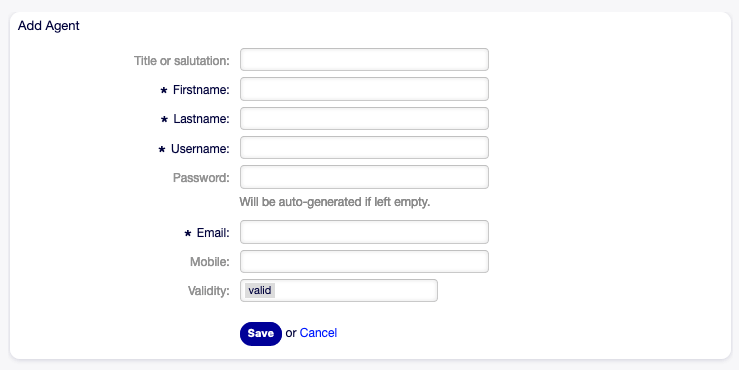
Fill in:
| Field | Value |
|---|---|
| Username | open_ticket_ai |
| Firstname | Open |
| Lastname | Ticket AI |
| (anything) | |
| Password | 16-character random password |
Generate a secure password
Section titled “Generate a secure password”openssl rand -base64 32 | cut -c1-16# PowerShell-join ((33..126) | Get-Random -Count 16 | ForEach-Object {[char]$_})Step 3: Save the password as env var
Section titled “Step 3: Save the password as env var”Depending on your deployment, set the password as an environment variable:
OTAI_ZNUNY_PASSWORD=your_generated_password_hereYou can name it different but it needs to machth your Open Ticket AI config.
Never store this password inside Git.
Use .env + server secret storage.
2. Assign Permissions (Agents ↔ Groups or Agents ↔ Roles)
Section titled “2. Assign Permissions (Agents ↔ Groups or Agents ↔ Roles)”Open Ticket AI can only perform actions that the user is allowed to do.
Depending on your automation pipeline, you must grant:
| Automation Type | Required Permissions |
|---|---|
| Queue Classification | ro, move_into |
| Priority Classification | ro, priority |
| Note creation | ro, note |
| Ticket updates | ro, move_into, priority, note |
Option A — Assign via Groups (recommended)
Section titled “Option A — Assign via Groups (recommended)”Go to:
Admin → Agents ↔ Groups
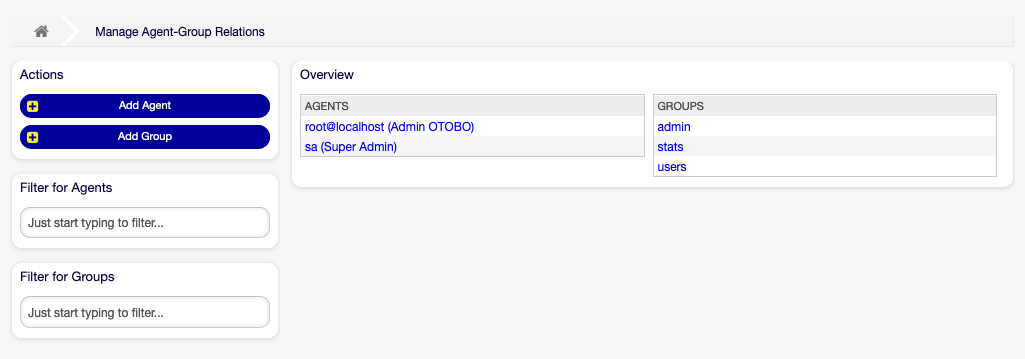
Select the agent open_ticket_ai and give permissions like:
| Permission | Meaning |
|---|---|
| ro | Read ticket |
| move_into | Move ticket into queue |
| priority | Change priority |
| note | Add internal notes |
rw if you need to create a ticket.
Section titled “rw if you need to create a ticket.”Option B — Assign via Roles (optional but scalable)
Section titled “Option B — Assign via Roles (optional but scalable)”If your OTOBO uses Roles → Groups mapping, assign:
Admin → Agents ↔ Roles
Then ensure the Role has the required group permissions.
3. Ensure Queues, Priorities, and Fields Exist
Section titled “3. Ensure Queues, Priorities, and Fields Exist”Your automation pipeline refers to specific names such as:
- Queues: “IT”, “Real Estate”, etc.
- Priorities: “3 Mittel”, “5 Kritisch”, etc.
- Types, Services (if used)
You must manually confirm:
Section titled “You must manually confirm:”✅ Every Queue in your config.yml exists
✅ Every Priority your ML model predicts exists
✅ If you use “note” actions → Agent has permission
✅ Ticket types referenced in automation exist
If the name is wrong, the WebService update will fail.
4. Create the WebService “OpenTicketAI”
Section titled “4. Create the WebService “OpenTicketAI””Go to:
Admin → Web Services
Step 1: Click “Add Web Service”
Section titled “Step 1: Click “Add Web Service””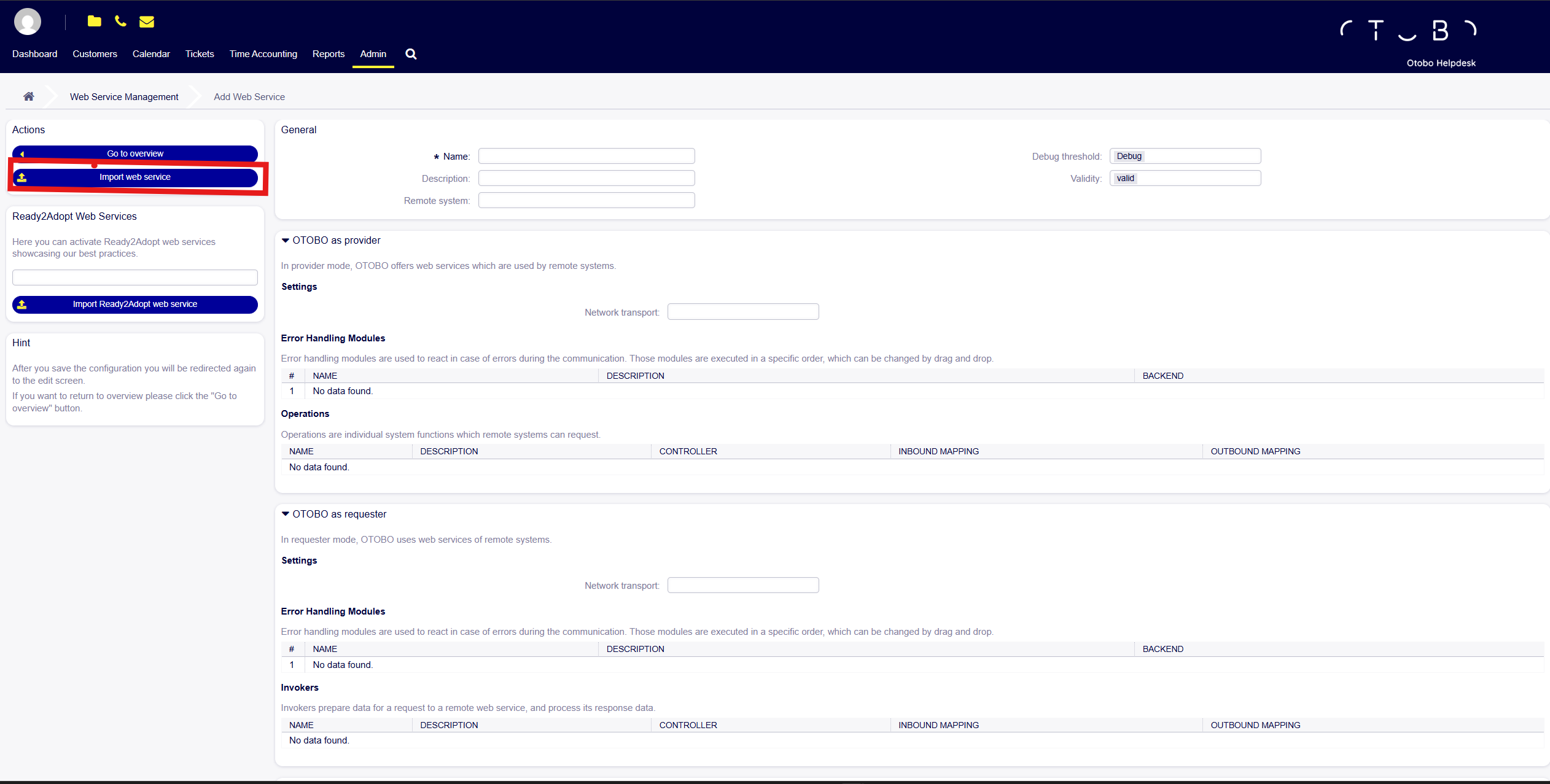
Then select Import Web Service.
Step 2: Import Webservice
Section titled “Step 2: Import Webservice”Use the template shipped with Open Ticket AI:
Upload the file using the Import web service button.
This creates:
/ticket-get/ticket-update/ticket-search/ticket-create
All restricted so only the user open_ticket_ai may use them.
5. Why the WebService Is Restricted
Section titled “5. Why the WebService Is Restricted”The YAML you import includes:
ValueMap: UserLogin: ValueMapRegEx: .*: open_ticket_aiThis forces every inbound request to authenticate as open_ticket_ai
—even if an attacker sends arbitrary usernames.
This prevents:
- Password brute-force attacks
- API abuse
- Unauthorized ticket manipulation
With a 16-character random password, brute-force is impossible even under extreme load.
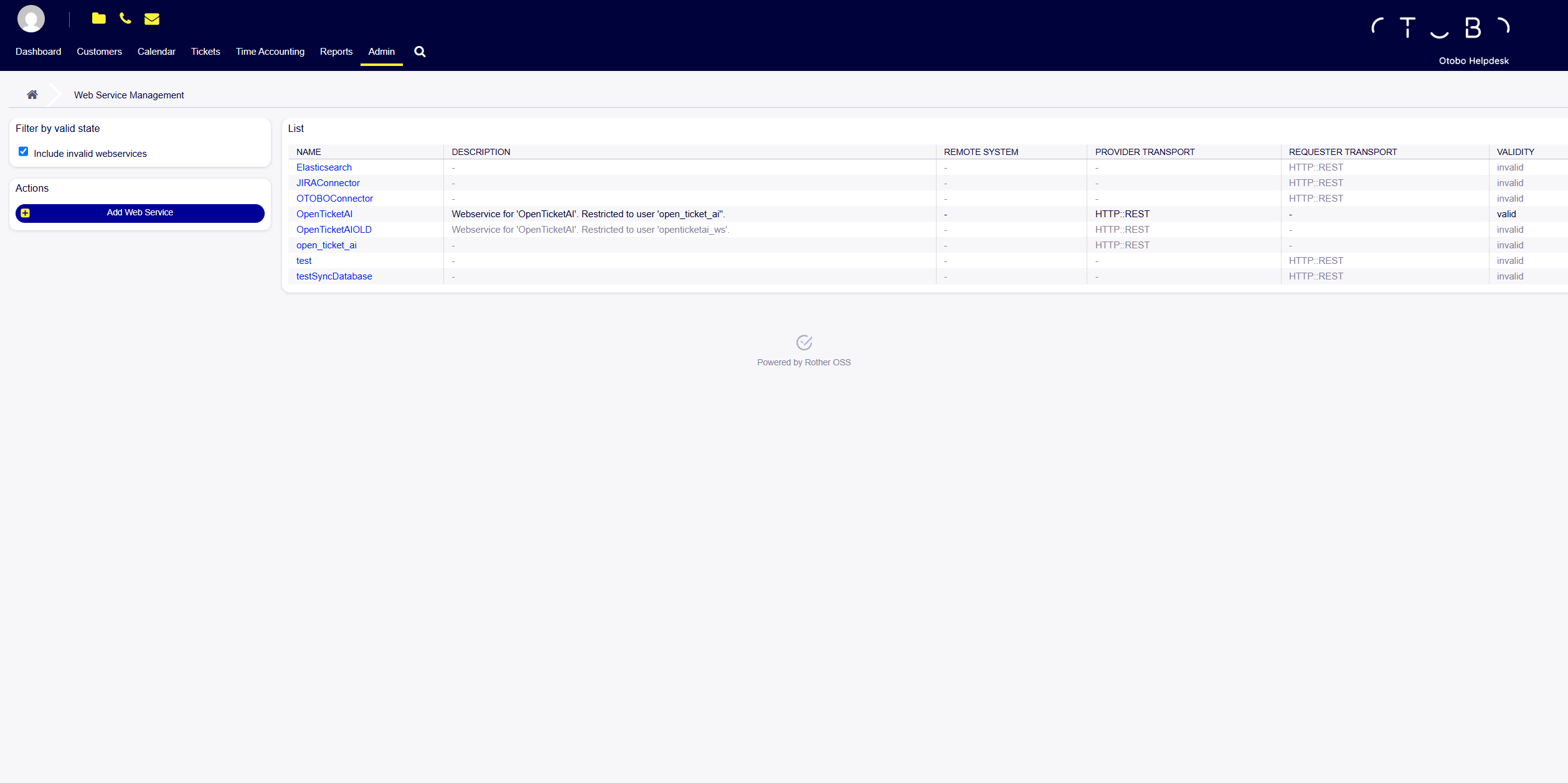
6. Verify WebService Is Active
Section titled “6. Verify WebService Is Active”After import, your list should show:
Look for:
✅ Name: OpenTicketAI
✅ Provider Transport: HTTP::REST
✅ Validity: valid
✅ Restricted to user open_ticket_ai
If not valid, edit → Save again.