
Zammad Commander: An Open-Source Internal AI Chat for Zammad
Build an internal admin chat for your Zammad helpdesk with LibreChat and the Zammad MCP Server. Search tickets, summarize threads, and draft replies — in the cloud or fully on-prem with Ollama and Qwen 3.6.
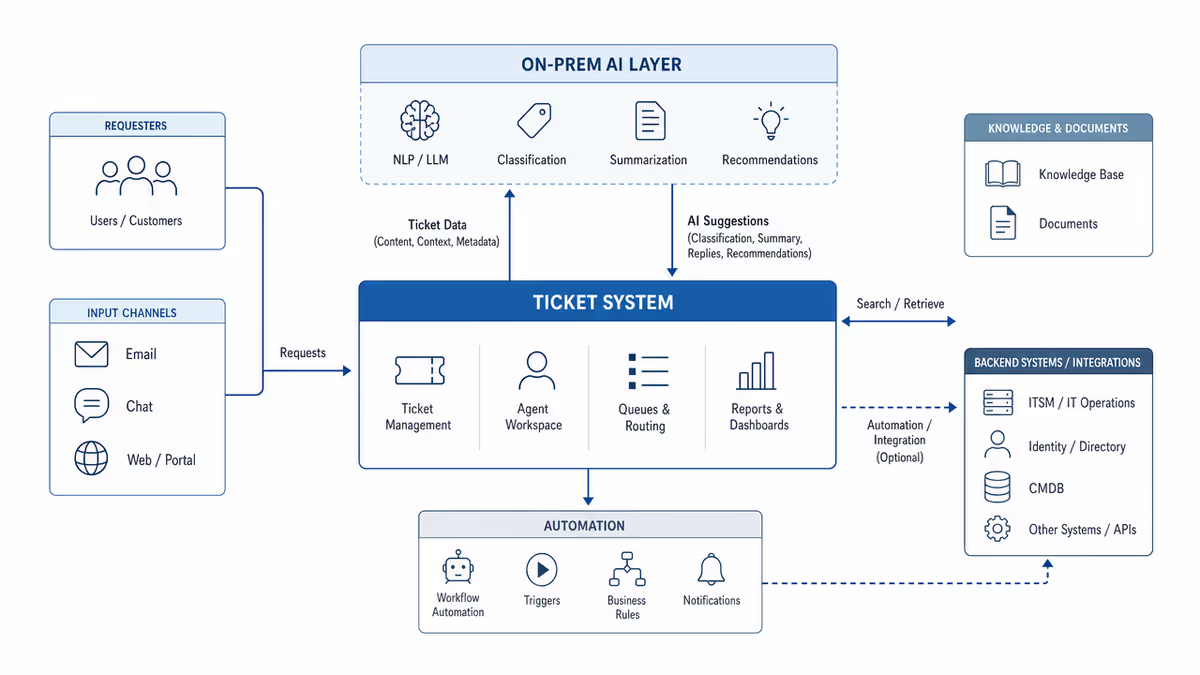
Most “AI for your helpdesk” demos end the same way: a slick chat box that can read a ticket, and a quiet hope that it never deletes one. Zammad Commander is the opposite. It is an open-source internal admin chat for Zammad that gives your agents a real copilot — search, summaries, draft replies — while the rights of that copilot are pinned down by configuration, not trust.
It is built from two open-source parts you can run today:
- LibreChat — a self-hostable chat UI.
- Zammad MCP Server — typed Zammad tools over MCP (production setup guide) the Model Context Protocol, with environment-driven access control.
And it runs two ways: a cloud variant (any LLM API) for the fastest proof of concept, and a fully on-prem variant where the model runs locally with Ollama and nothing leaves your network.
Why an internal chat first?
The same MCP server can power three different products. We start with the internal admin chat because it has the clearest value and the lowest risk:
| Surface | Who uses it | Rights |
|---|---|---|
| Internal admin chat (this post) | Your agents and admins | Broad read/write, no deletes |
| No-code automation backend | Your workflows | Scoped to specific actions |
| Customer-facing assistant | End users | Read + reply on one public queue |
You don’t rebuild anything to move between them. You change environment variables on one service.
Architecture
flowchart LR
  Browser[Browser chat UI] --> LC[LibreChat]
  LC -->|streamable HTTP /mcp| MCP[Zammad MCP server]
  MCP -->|REST + API token| Z[(Your Zammad)]
  LC -.on-prem only.-> Ollama[Ollama local LLM]
  LC -.cloud only.-> Cloud[Cloud LLM API]
LibreChat talks to the MCP server over streamable HTTP. The MCP server holds one Zammad API token and enforces the access policy. The language model is the only piece that changes between variants.
The safety model: rights as configuration
The default profile allows every tool category but denies the destructive ones:
MCP_ALLOWED_CATEGORIES=all
MCP_DENIED_TOOLS=delete_ticket,delete_user,delete_organization
Want a read-only analyst chat instead? Narrow the categories:
MCP_ALLOWED_CATEGORIES=tickets,search,systemBecause the policy lives on the MCP server, every LibreChat user inherits it — there is no way for a clever prompt to talk the model into a tool it was never given. For the full list of categories and tools, see the Zammad MCP Server configuration.
Variant A — cloud LLM, fastest start
Point LibreChat at a cloud model (for example via OpenRouter), set your Zammad URL and token, and start the stack:
cp env.example .env        # set ZAMMAD_URL, ZAMMAD_HTTP_TOKEN, OPENROUTER_KEY
docker compose up -d
# open http://localhost:3080 and pick "Zammad Commander"
Inference happens at the provider, so there is no GPU requirement. This is the right choice for a quick internal pilot.
Variant B — fully on-prem with Ollama
When ticket content must not leave your infrastructure, run the model locally. The on-prem overlay adds an Ollama service and builds the MCP server straight from GitHub:
cp env.example .env        # set ZAMMAD_URL, ZAMMAD_HTTP_TOKEN (no cloud key)
docker compose -f docker-compose.yml -f docker-compose.onprem.yml up -d
docker compose -f docker-compose.yml -f docker-compose.onprem.yml \
  exec ollama ollama pull qwen3.6:27b
# open http://localhost:3080 and pick "Zammad Commander (Qwen 3.6 27B)"
The recommended default is Qwen 3.6 27B. Sizing for the local model (Q4_K_M quantization, on top of ~4 GB for the rest of the stack):
| Model (Ollama tag) | Download | GPU VRAM | Host RAM |
|---|---|---|---|
qwen3.5:4b | ~3.4 GB | ~5 GB | ~12 GB |
qwen3.5:9b | ~6.6 GB | ~8 GB | ~16 GB |
qwen3.6:27b (recommended) | ~17 GB | ~20 GB | ~32 GB |
A 24 GB GPU such as an NVIDIA L4 or RTX 4090 holds the 27B model comfortably and
makes live chat feel responsive. On lighter hardware, start with qwen3.5:9b.
What it feels like in practice
Once you pick the Commander preset, the prompts are exactly what an agent would ask a colleague:
- “Run a health check on Zammad and tell me the connected version.”
- “List the open tickets and flag anything that looks overdue.”
- “Summarize ticket #1 for a shift handover.”
- “Draft a friendly reply for ticket #1 — don’t send it, just show me the draft.”
The assistant drafts; a human reviews and sends. That single rule keeps the tool useful without making it dangerous.
Where it fits
- Zammad MCP Server — the foundation; also works directly from Claude Desktop and Cursor.
- Zammad Commander docs — the full setup reference for both variants.
- Open Ticket AI for Zammad — when you need custom-trained classification and routing models, not just an interactive chat.
Takeaway
Zammad Commander shows that “AI on your helpdesk” doesn’t require a new product or a leap of faith. With LibreChat and the Zammad MCP Server — both MIT licensed — you get an internal copilot in an afternoon, and with the on-prem variant you get it without a single ticket leaving your network.
Start with the Zammad Commander documentation.