
Classification AI tasks
Zero-shot classification — sync values, write descriptions, set the workflow.
Classification AI tasks
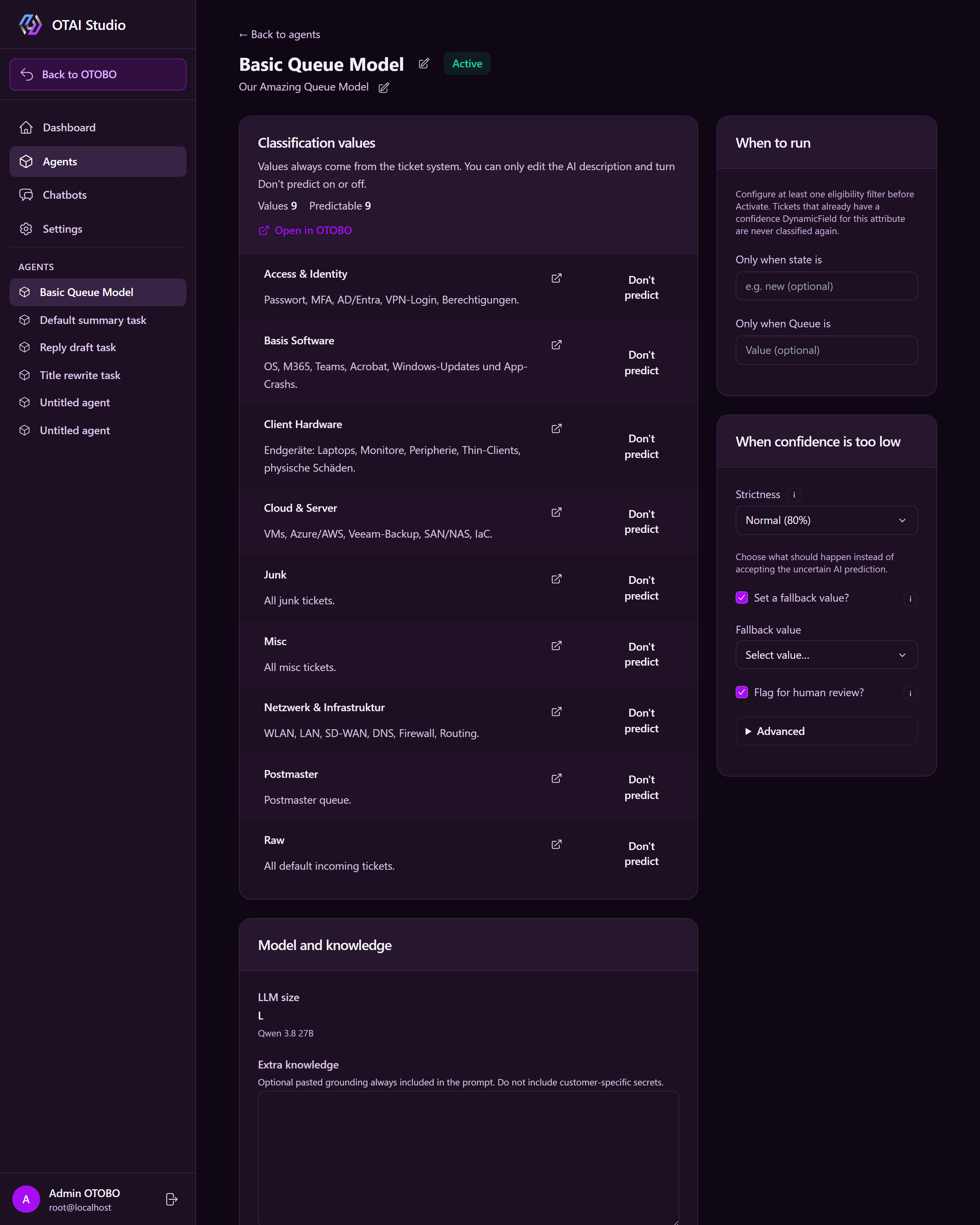
A classification Agent sets a single ticket attribute — queue, priority, type, service, or a dropdown DynamicField. Classification is zero-shot: sync target values from the ticket system, write short descriptions, and the local LLM picks the match.
Studio creates one Agent kind per target. Native targets are fixed; only DynamicField classification requires specifying a field name.
Create a task
- Open AI Tasks.
- Click + New Agent and select:
- Queue classification
- Priority classification
- Type classification
- Service classification
- Dynamic field classification
- or Try an example / Beispiel ausprobieren for a demo (department, municipal queues, administration priority, or university queues)
- Studio opens the Agent detail page (Inactive by default).
Target and LLM
Under AI Task settings:
- Prediction target — fixed for native targets. For Dynamic field classification, enter the exact DynamicField name.
- LLM size — Studio recommends a size; the exact model name appears below.
Sync values and describe them
- Click Sync values from ticket system to pull exact names without overwriting existing descriptions.
- Select a value and add a short AI description in your ticket language.
- Don’t predict excludes values the AI must never choose (e.g. raw inbox queues).
- Remove deletes a value from the task (not the ticket system).
Accurate descriptions ensure reliable classification. Names must match the ticket system exactly.
Workflow settings
Under Workflow settings, configure execution triggers and low-confidence handling. Save with Save workflow settings.
| Setting | Meaning |
|---|---|
| Only when state is | Optional: process only tickets in this state (e.g. new) |
| Only when … is | Optional: process only when the target attribute matches a specific value |
| Also run when … is empty | Run when the attribute is empty |
| Strictness | Minimum AI confidence: Lax (60%), Normal (80%), or Strict (90%) |
| Set a fallback value? | Use a default replacement when AI confidence is too low |
| Fallback value | Select the replacement value (visible when fallback is enabled) |
| Flag for human review? | Mark low-confidence tickets for agents via HumanReviewNeeded DynamicFields |
Set Strictness first, then define low-confidence handling. Without a fallback, human review stays enabled.
Custom context goes in Extra information (model settings). Under Advanced, optionally enable Write article note using placeholders like {result_value} and {confidence}.
Tickets with an existing confidence DynamicField for this attribute are skipped.
Activate
- Set at least one eligibility filter (state, attribute, or empty state).
- Resolve missing values: Predict cannot be enabled for values missing from the ticket system.
- Activate — Runtime begins executing the task.
- Deactivate stops execution while preserving configuration.
Archiving hides the task from the list without deleting it.
Tips
- Use one active Agent per attribute (e.g. one queue Agent).
- Re-run Sync after changing ticket system values.
- Monitor prediction accuracy and fallbacks on the Dashboard.