
AI Tasks
Create classification, summary, field extraction, reply draft, and title rewrite tasks.
Agents
An Agent configures an LLM and optional tools (LD-046). Ticket Agents instruct local Runtime automatically; chatbot Agents power the chat widget. Kinds:
| Kind | Purpose |
|---|---|
| Queue classification | Predict ticket queue |
| Priority classification | Predict ticket priority |
| Type classification | Predict ticket type |
| Service classification | Predict ticket service |
| Dynamic field classification | Predict dropdown DynamicField value |
| Summarization | Write a summary into a field |
| Field extraction | Extract a value from the first message into a DynamicField |
| Reply draft | Draft subject and body for review (optional search_faq) |
| Title rewrite | Replace unclear subjects when above confidence threshold |
| Chatbot | Interactive chat using search_faq and create_ticket |
Studio stores Agents locally; Runtime runs active ticket Agents. No training required — classification uses zero-shot from value descriptions (see Classification tasks).
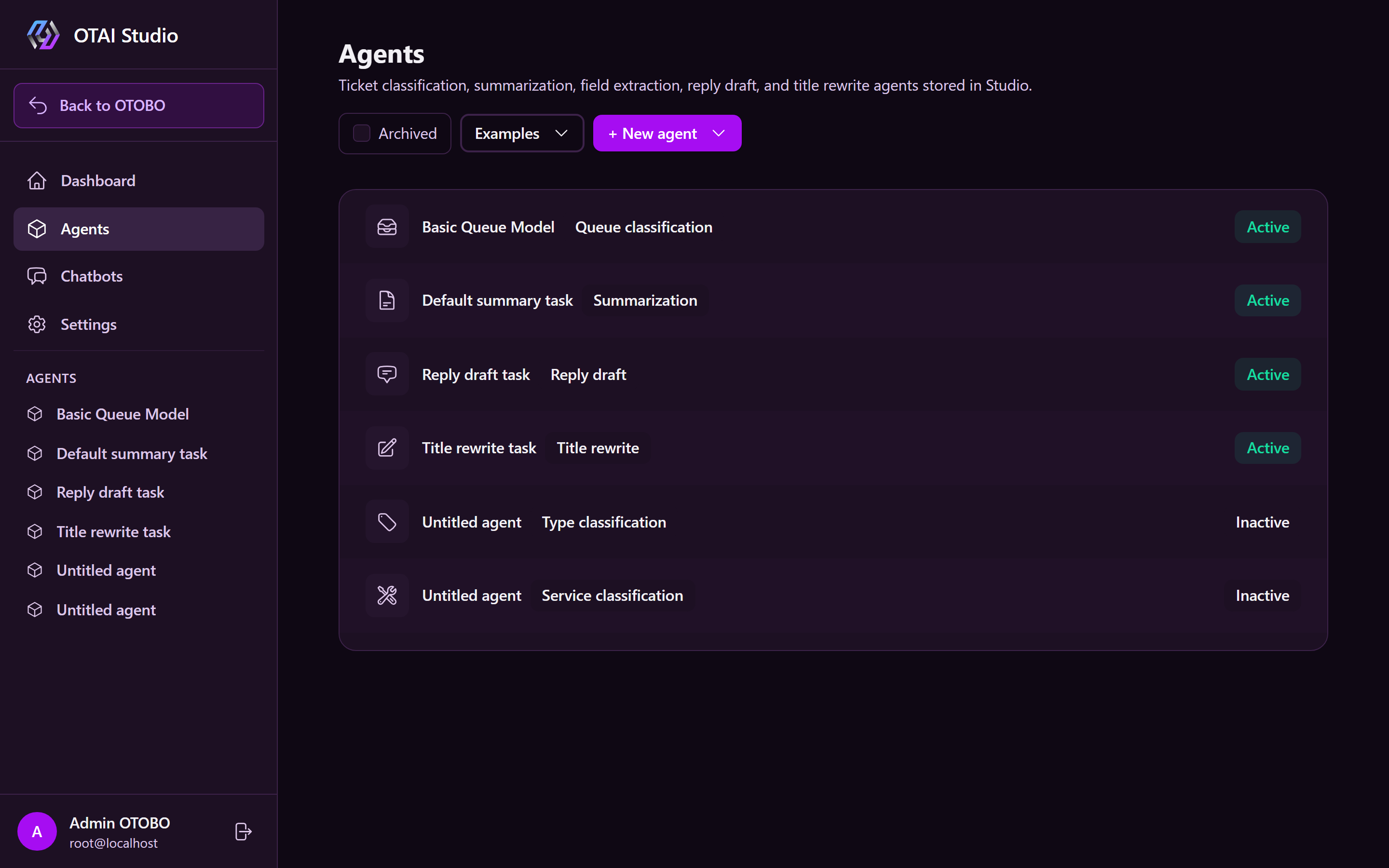
Open the list
- Sign in to Studio (Signing in).
- Click Agents in navigation.
Each row displays name, kind, target attribute, LLM size, status (Active / Inactive), and optional Archived tag.
Create an Agent
- Click + New Agent and select a kind, or pick Try an example.
| Menu item | Effect |
|---|---|
| Queue classification | Opens new queue classification Agent |
| Priority classification | Opens new priority classification Agent |
| Type classification | Opens new type classification Agent |
| Service classification | Opens new service classification Agent |
| Dynamic field classification | New DynamicField Agent — set target field name |
| Summarization | Opens new summarization Agent |
| Field extraction | New field extraction Agent — set target field, prompt, and type |
| Reply draft | New reply draft Agent — set prompt, model, tools, and trigger conditions |
| Title rewrite | New title rewrite Agent — set state, strictness, model, and prompt |
| Example classification: department (under Examples) | Demo: dropdown DynamicField OTAIBeispielAbteilung with department cues |
| Example queue classification: municipality | Demo: municipal queues as DynamicField OTAIBeispielKommuneQueue |
| Example priority classification: administration | Demo: high/medium/low priorities as DynamicField OTAIBeispielPrioritaet |
| Example queue classification: university | Demo: university queues as DynamicField OTAIBeispielUniversitaetQueue |
Then configure and Activate:
For field extraction, describe what the target DynamicField holds and pick Text, Integer, or Number. In Workflow settings, choose the ticket state (e.g. new) and enable Only run when the target DynamicField is empty. The task parses the subject and first customer message without overwriting existing values.
Archive
- Archive hides tasks from the main list while keeping database records.
- Show archived displays archived tasks.
- Unarchive restores visibility.
- Archived tasks cannot run.
Active / Inactive controls Runtime execution. Archived only controls Studio visibility.
Sidebar shortcuts
AI TASKS in the sidebar provides quick links to existing tasks from any page.