
Summary AI tasks
Have Runtime write ticket summaries into a DynamicField.
Summary AI tasks
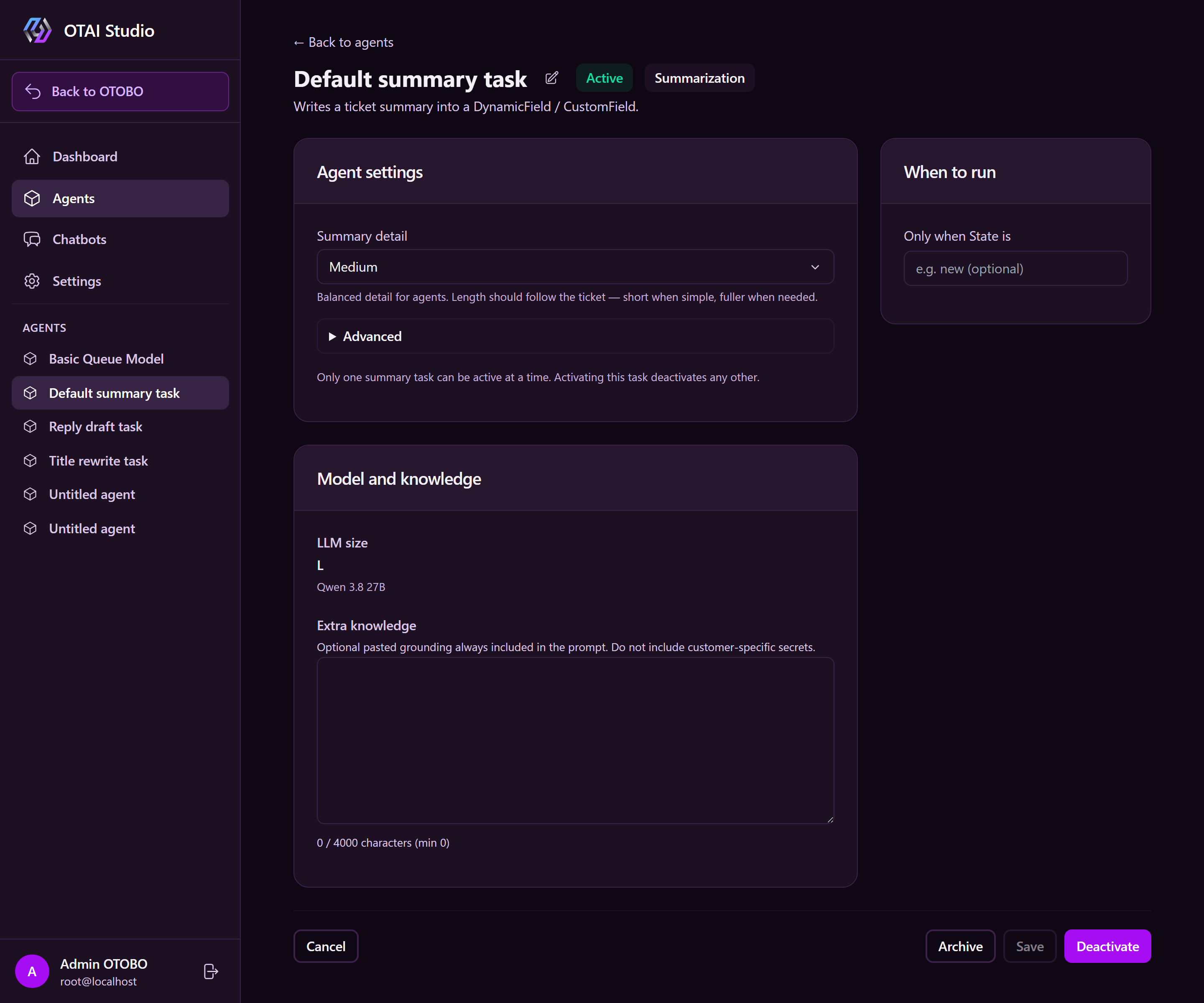
Summary tasks instruct Runtime to write ticket summaries directly into a
DynamicField / CustomField (e.g. OTAISummary). Writeback is limited to the
ticket system only.
Create a task
- Open AI Tasks.
- Click + New AI task and select Summarization.
- Studio opens the task details.
Settings
Under AI Task settings:
| Field | Meaning |
|---|---|
| Instruction | Optional: guidelines for summary tone, length, or focus |
| Target field | Exact DynamicField / CustomField name (e.g. OTAISummary) |
| LLM size | Model size selection (recommended option marked) |
Inputs save automatically. The target field must exist in your ticket system.
Activate
- Activate enables the task for Runtime.
- Only one summary task can be Active at a time; activating it deactivates any other.
- Deactivate stops writebacks while keeping configuration.
- Archive hides the task in Studio.
When Runtime summarizes
Runtime checks eligible tickets and writes a summary if:
- the summary field is empty, or
- a new article was added (article ID changed).
If up to date, the LLM is skipped. Summaries are saved to the DynamicField without creating new articles.
Tips
- Match the target field name with your helpdesk configuration.
- Track completed runs on the Dashboard.
- Set up routing separately under Classification tasks.