
Reply draft AI tasks
Pre-generate safe reply drafts and use them in OTOBO.
Reply draft AI tasks
A reply draft task pre-generates a subject and body when the latest ticket article is from the customer. Runtime stores drafts in DynamicFields only and never sends replies or creates customer-visible articles.
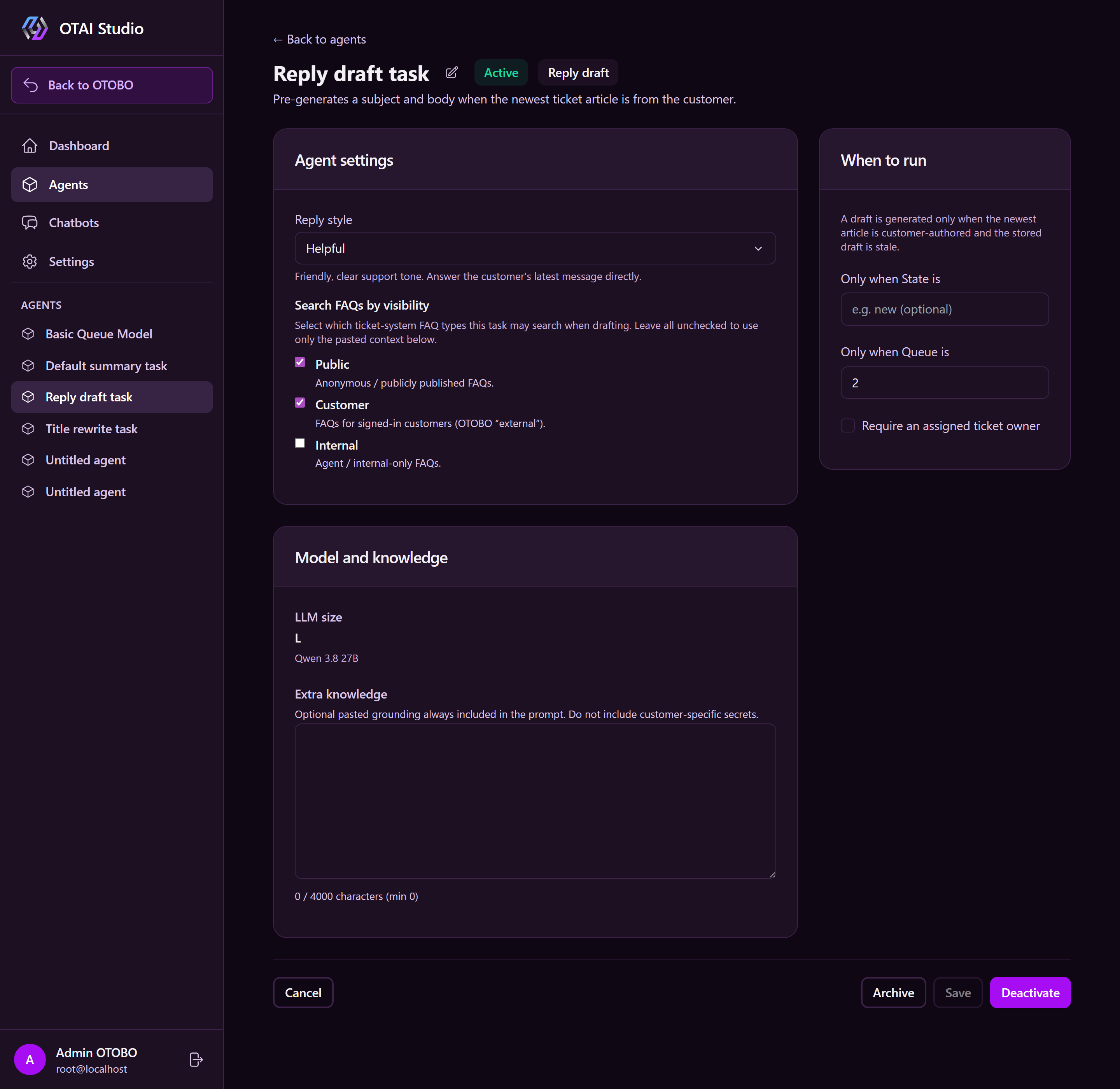
Create a task
- Open AI Tasks.
- Click + New AI task and select Reply draft.
- Enter a name and choose a Reply style (Helpful, Formal, or Short).
- Select the LLM.
- Optional: paste approved FAQ text to add to the local prompt.
- Set state/queue filters and owner requirements if needed.
- Save and activate the task.
Runtime runs when the latest article is customer-authored and the draft is missing or stale. Unassigned tickets are skipped if Require an assigned ticket owner is enabled.
Result in the ticket
The OTAI widget shows one of these states:
| State | Meaning |
|---|---|
| Ready | Draft is complete for agent review. |
| Partial | Draft has useful content but needs additions or placeholders filled. |
| Skipped | Safe reply was not possible; internal reason displayed. |
For Ready and Partial, Use draft opens the native OTOBO note screen (AgentTicketNote) prefilled. Form submission prevents truncation on long drafts. Review and edit before sending.
Safety boundary
Runtime never sends emails automatically. The agent sends directly from the native OTOBO screen under their own account, permissions, and signature.