
Agents
Create classification, summary, field extraction, reply draft, and title rewrite agents.
Agents
An Agent is a Studio configuration for an LLM with an optional tool list (LD-046). Ticket-side Agents tell the local Runtime what to do automatically; chatbot Agents run in the chatbot service + widget. Kinds:
| Kind | Purpose |
|---|---|
| Queue classification | Predict which queue a ticket should go to |
| Priority classification | Predict ticket priority |
| Type classification | Predict ticket type |
| Service classification | Predict ticket service |
| Dynamic field classification | Predict a dropdown DynamicField value |
| Summarization | Write a summary into a DynamicField / CustomField |
| Field extraction | Extract one configured value from the first customer message into a DynamicField |
| Reply draft | Prepare a subject and body for agent review and sending (may use search_faq) |
| Title rewrite | Replace unclear ticket subjects when confidence meets the selected threshold |
| Chatbot | Customer / public / internal chat (tools: search_faq, create_ticket) |
Studio stores Agents locally. Runtime only runs active ticket Agents. There is no training — classification is zero-shot from your value descriptions (see Classification tasks).
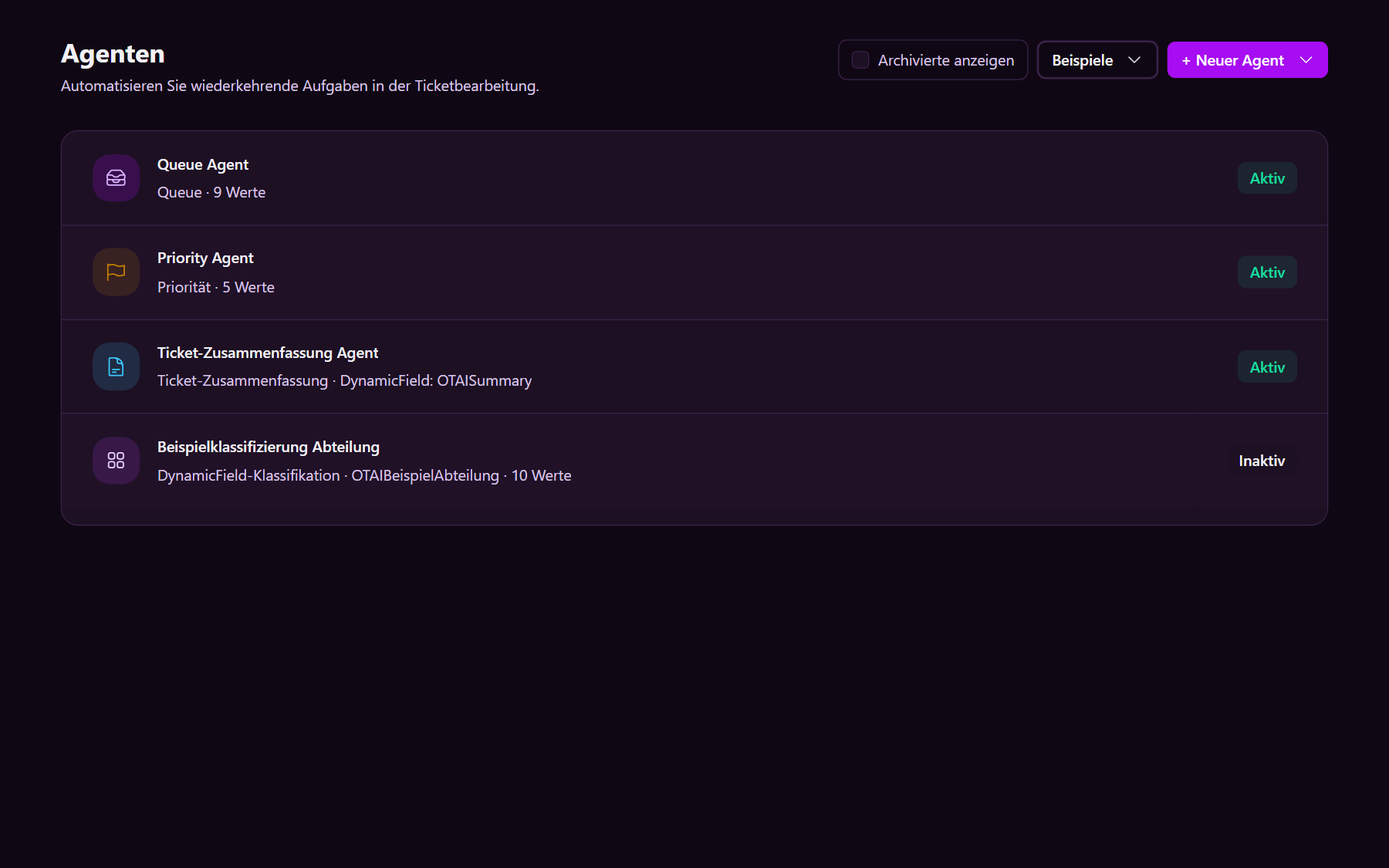
Open the list
- Sign in to Studio (Signing in).
- Click Agents in the navigation.
Each row shows name, kind, target attribute, LLM size, status (Active / Inactive), and optionally Archived.
Create an Agent
- Click + New Agent (top right) and choose a kind, or use Try an example for a demo task.
| Menu item | Effect |
|---|---|
| Queue classification | Empty queue classification Agent — opens the detail page |
| Priority classification | Empty priority classification Agent — opens the detail page |
| Type classification | Empty type classification Agent — opens the detail page |
| Service classification | Empty service classification Agent — opens the detail page |
| Dynamic field classification | Empty DynamicField classification Agent — set the DynamicField name |
| Summarization | Empty summarization Agent — opens the detail page |
| Field extraction | Empty field extraction Agent — set the DynamicField name, extraction instruction, and value type |
| Reply draft | Empty reply draft Agent — set the instruction, model, FAQ tools, and eligibility |
| Title rewrite | Empty title rewrite Agent — set When-to-run state, strictness, model, and optional guidance |
| Example classification: department (under Examples) | Demo: dropdown DynamicField OTAIBeispielAbteilung plus classification Agent with department cues |
| Example queue classification: municipality | Demo: municipal queues as DynamicField OTAIBeispielKommuneQueue |
| Example priority classification: administration | Demo: high / medium / low as DynamicField OTAIBeispielPrioritaet |
| Example queue classification: university | Demo: university queues as DynamicField OTAIBeispielUniversitaetQueue |
Then configure and Activate:
For field extraction, describe exactly what the target DynamicField should
contain and select Text, Integer, or Number. In Run conditions,
select the incoming ticket state (for example new) and keep Only run when
the target DynamicField is empty enabled. The agent reads the ticket subject
and first customer message and never overwrites an existing target value.
Archive
- Archive hides the agent from the normal list (data stays in the Studio database).
- Show archived includes archived agents in the same list.
- Unarchive restores visibility.
- Archived agents cannot be active.
Active / Inactive controls Runtime. Archived only controls Studio visibility.
Sidebar shortcuts
Agents in the sidebar lists the agents you already created, from any Studio page.