
Classification agents
Zero-shot classification — sync values, write descriptions, set run conditions.
Classification agents
A classification Agent lets Runtime set one ticket attribute — queue, priority, type, service, or a dropdown DynamicField. The AI is zero-shot: you sync target values from the ticket system, write short descriptions, and the local LLM picks the matching value.
Studio creates one Agent kind per target (aligned with Runtime). Natives have a fixed prediction target; only DynamicField classification asks for a field name.
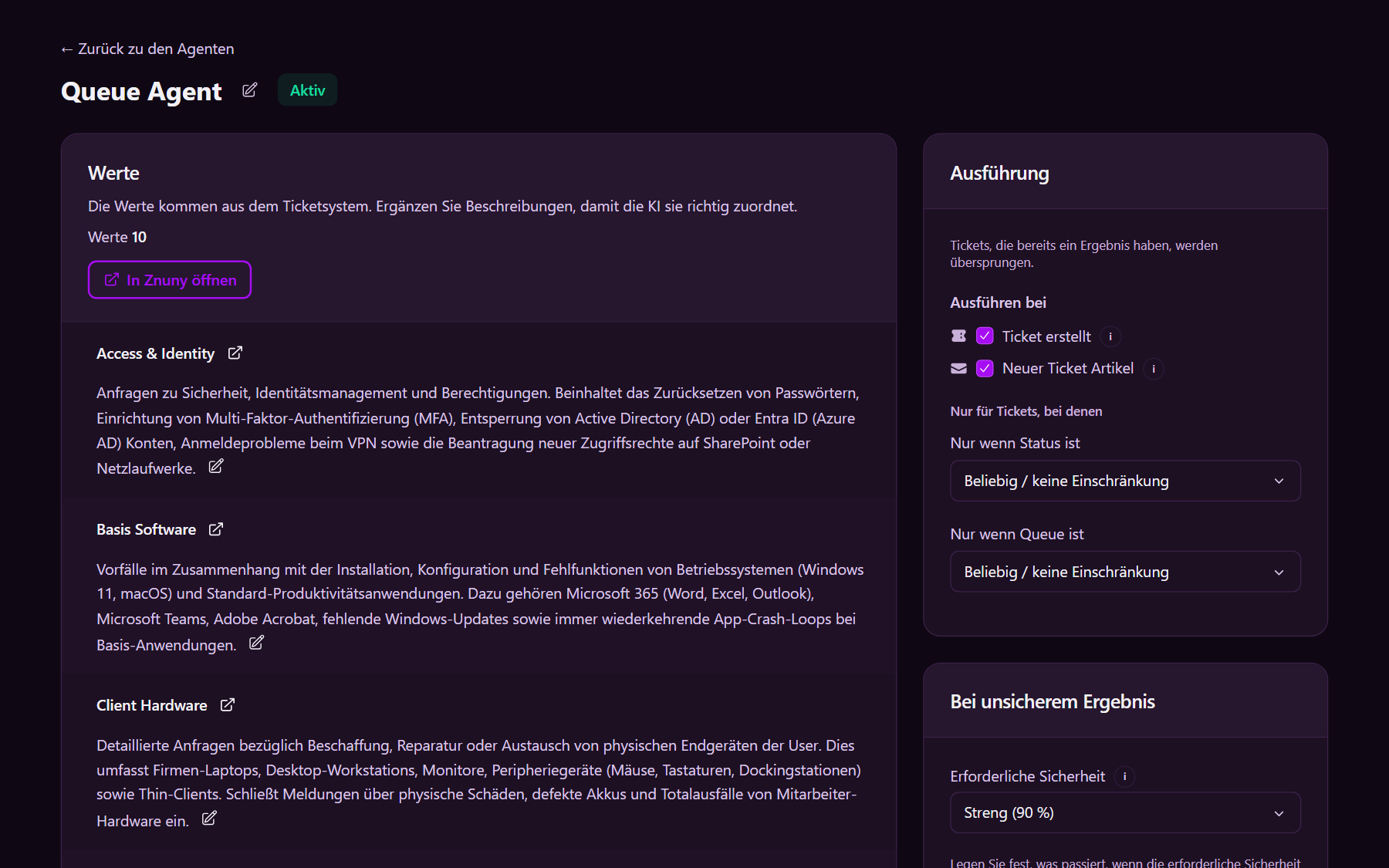
Create a task
- Open Agents.
- Click + New Agent and choose one of:
- Queue classification
- Priority classification
- Type classification
- Service classification
- Dynamic field classification
- or Try an example / Beispiel ausprobieren for a demo (department, municipal queues, administration priority, or university queues)
- Studio opens the new Agent detail page (starts Inactive).
Target and LLM
On the right under Settings:
- Prediction target — fixed for queue / priority / type / service Agents. For Dynamic field classification: DynamicField name (exact name in the ticket system).
- LLM size — Studio recommends a size; the concrete model name appears below.
Sync values and describe them
- Click Sync values from ticket system. Studio pulls exact names from the ticket system (existing AI descriptions are never overwritten).
- Click a value and add an AI description — short, in the language of your tickets, when that value applies.
Without useful descriptions, classification stays weak. Names must match the ticket system — no free-typed spelling variants.
Run conditions
Under Run conditions you control when Runtime runs and what happens on uncertain predictions. Save with Save.
| Setting | Meaning |
|---|---|
| Only when state is | Optional: only tickets in this state (e.g. new) |
| Only when … is | Optional: only when the target attribute has a specific value |
| Also run when … is empty | Also run when the attribute is empty |
| Minimum confidence | Minimum AI confidence: Loose (60%), Normal (80%), or Strict (90%) |
| Set a fallback value? | Write a safe replacement instead of the AI prediction when confidence is too low |
| Fallback value | Select the replacement; shown only when a fallback is enabled |
| Flag for human review? | Mark uncertain tickets for agents through the HumanReviewNeeded DynamicFields |
Set Minimum confidence first. Then choose what happens when confidence is too low. Without a fallback value, human review stays enabled so no uncertain ticket is left without an action.
Customer-specific context goes in Extra information (model settings), not a
separate base prompt. Under Advanced (optional): Write article note with
template placeholders ({result_value}, {confidence}, …).
Tickets that already have a confidence DynamicField for this attribute are not classified again.
Activate
- Set at least one eligibility filter (state and/or attribute / “empty”).
- No blocking values: Predict must not be on for values missing from the ticket system — otherwise Activate is blocked.
- Activate — Runtime picks up the task.
- Deactivate stops execution; the config remains.
Archive hides the task from the list without deleting it.
Tips
- Typically one active Agent per attribute (for example one queue Agent).
- After queue/priority changes in the ticket system, run Sync again.
- Check impact and fallbacks on the Dashboard.