
Reply draft agents
Pre-generate safe reply drafts and use them in the ticket system.
Reply draft agents
A reply draft task pre-generates a subject and body when the newest ticket article is from the customer. Runtime stores the draft in DynamicFields only. It does not send a reply or create a customer-visible article.
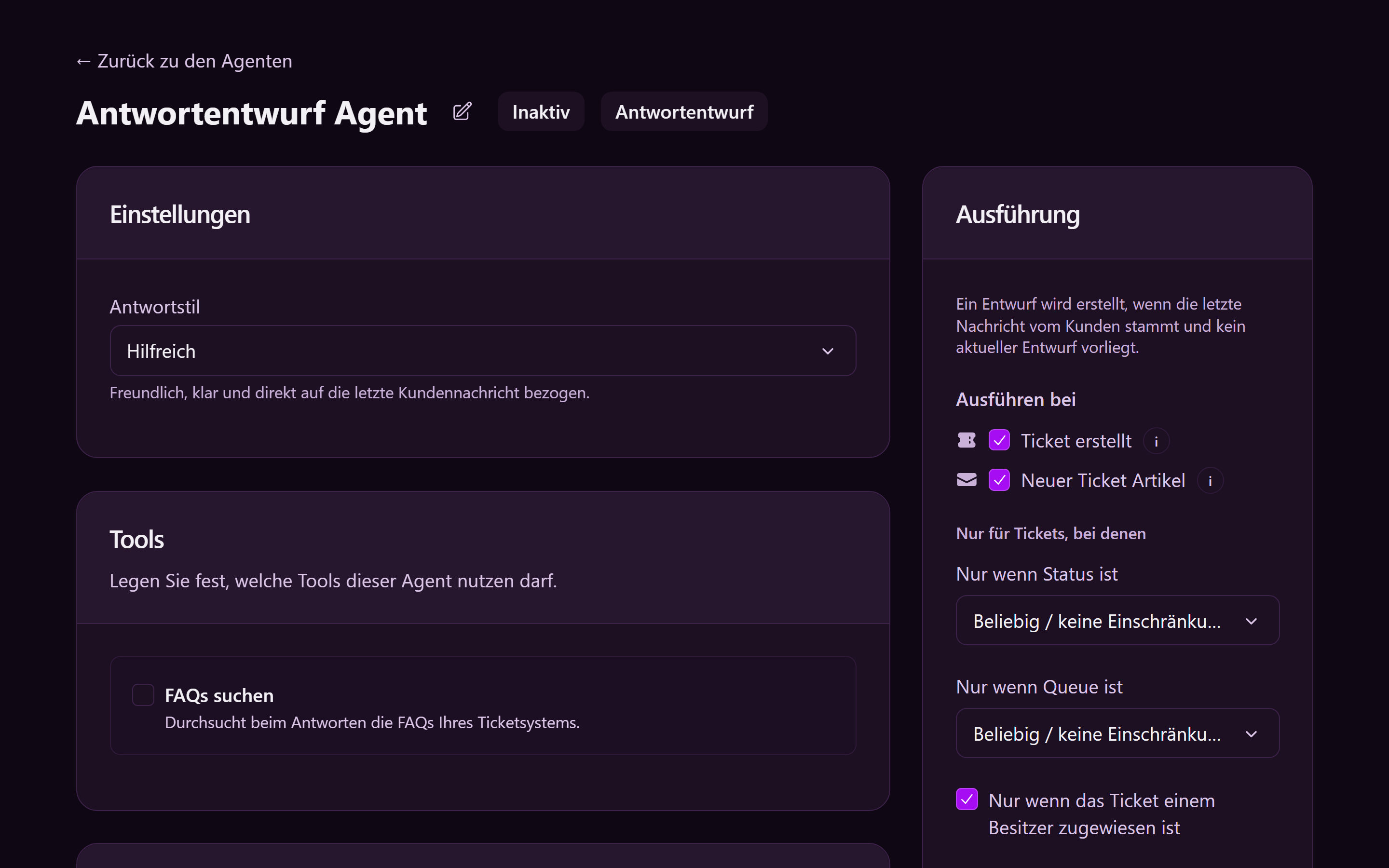
Create a task
- Open Agents.
- Click + New agent, then choose Reply draft.
- Enter a name and choose a Reply style (Helpful, Formal, or Short).
- Select the LLM.
- Optional: paste approved FAQ text. This text is added directly to the local prompt.
- If needed, set state and queue filters and whether an assigned ticket owner is required.
- Save and activate the task.
Runtime processes a ticket only when the newest article is customer-authored and the stored draft for that article is missing or stale. If Require an assigned ticket owner is enabled, unassigned tickets are skipped.
Result in the ticket
The OTAI widget shows one of these states:
| State | Meaning |
|---|---|
| Ready | The subject and body are complete enough for agent review. |
| Partial | The draft contains useful content but needs additions or placeholder values. |
| Skipped | A safe reply was not possible. The widget shows the internal reason. |
For Ready and Partial, Use draft opens the native OTOBO note screen
(AgentTicketNote by default) with the subject and body prefilled. Review and
edit both before sending. Long drafts are transferred by form submission so the
body is not truncated by URL length limits.
Safety boundary
Runtime never sends automatically as the ticket owner. The signed-in agent sends from the native OTOBO screen, so that agent’s permissions, signature, and send confirmation apply.