
Hospital Helpdesk in OTAI Studio: Priorities, Queues, and a Public Chatbot
Configure OTAI Studio for a hospital desk: priority and queue Agents, run conditions, and a public chatbot for hours, appointments, and records.
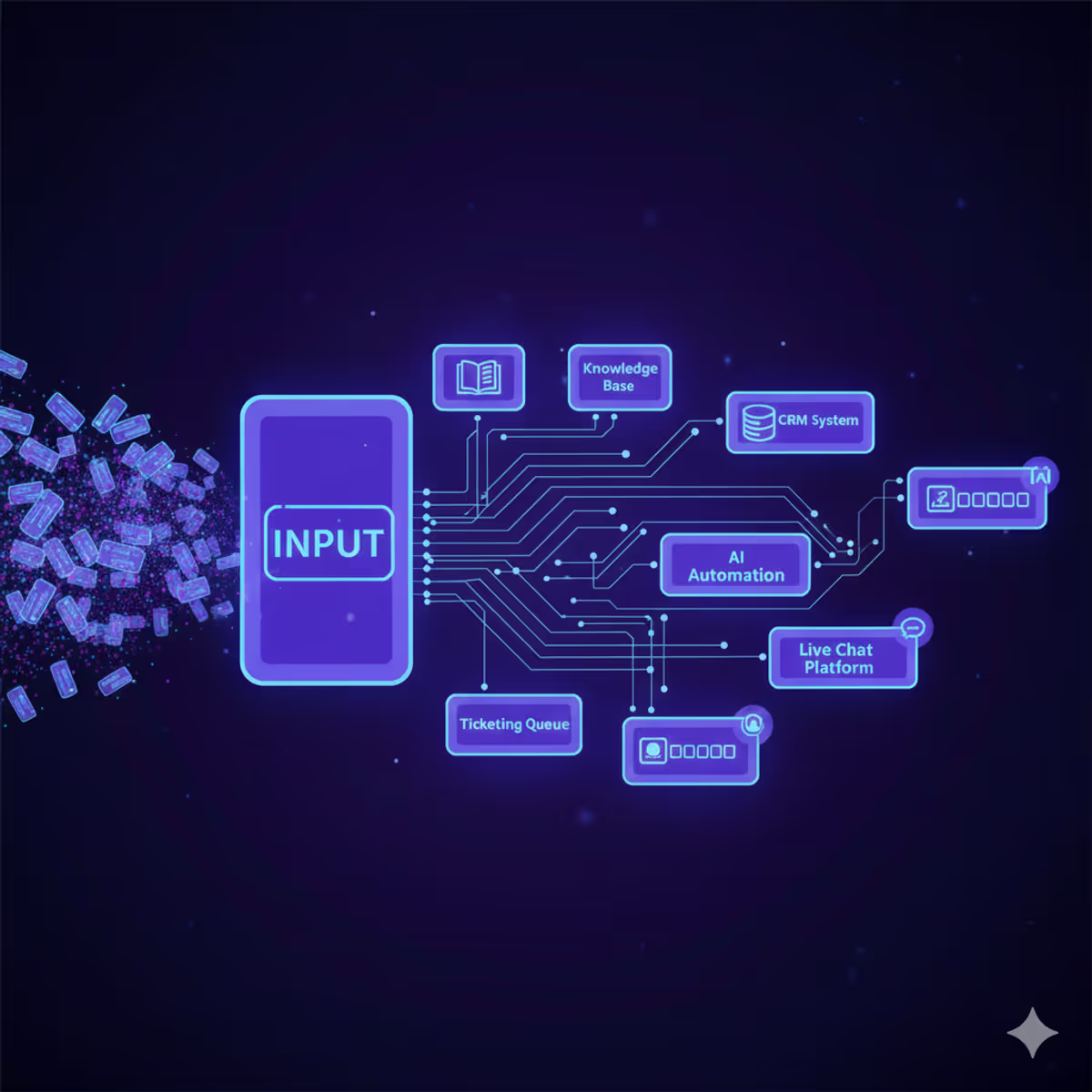
A university hospital desk handles appointments, records requests, admissions paperwork, facilities, and IT accounts. Those are tickets. Clinical decisions stay with staff. OTAI Studio, on the hospital’s own servers (Full On-Prem), classifies those tickets and answers only from FAQs the hospital has published.
Classification is zero-shot: you describe each queue and priority, and Runtime picks a value. There is no training step and no model built from old patient tickets. Agents propose values and drafts. People still send replies and close tickets.
Two setups for one hospital
Studio is one workspace on one ticket system. A second site, or a split between the clinic and administration, is a second Full On-Prem installation. Each installation has its own Agents, its own Chatbots, and its own FAQ selection. Run conditions do not carry across.
Use a Free Cloud Trial only to click through Studio before you buy a GPU. Production runs on the hospital’s infrastructure.
Agents to create
Open Agents and create the tasks below. They stay Inactive until you save run conditions and click Activate.
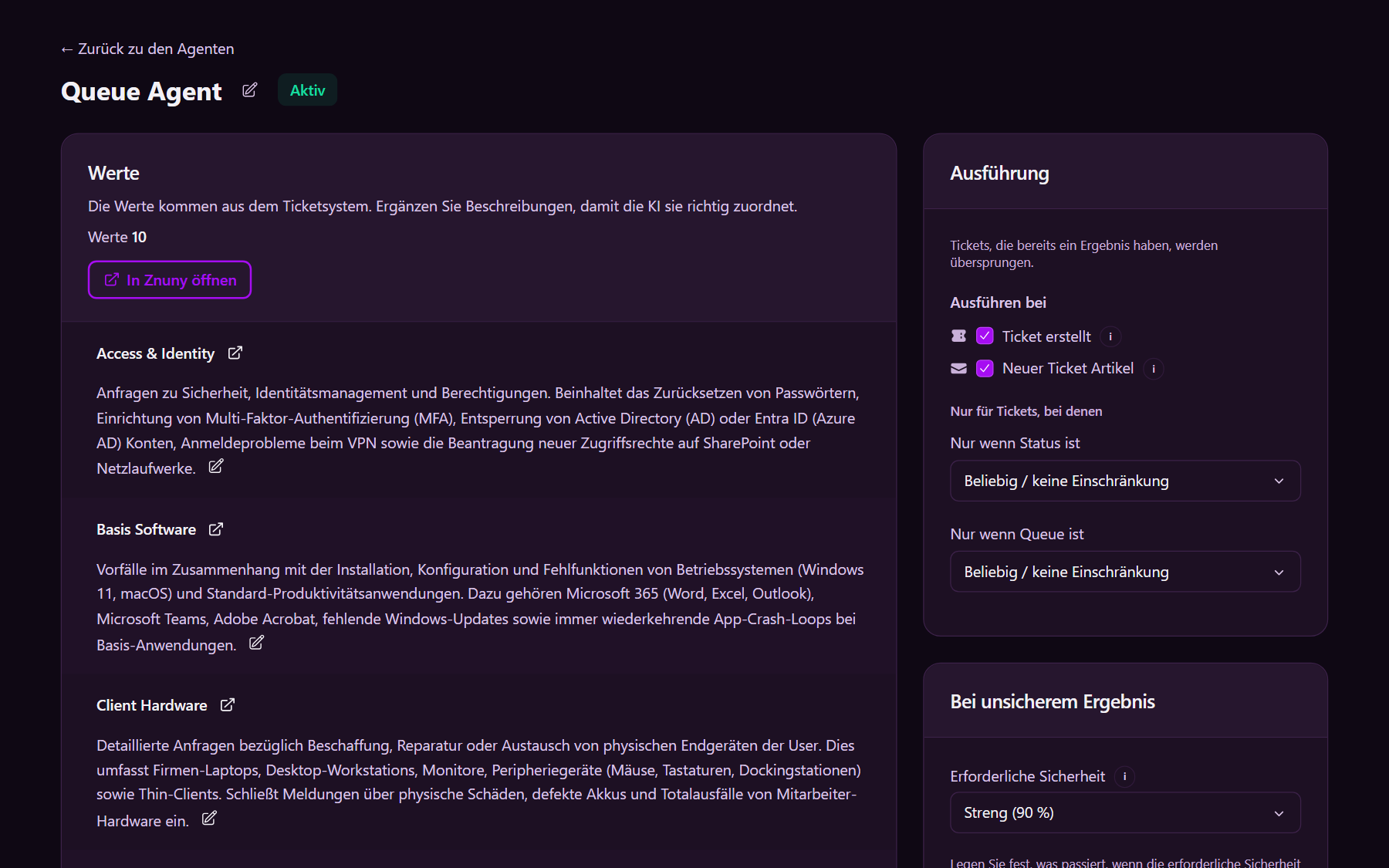
Queue classification (OTOBO or Znuny). Sync the live queues, then write a short description for each:
| Queue | When it applies |
|---|---|
| Appointments | Booking, moving, or cancelling a slot; referral letters that ask for a date |
| Records | Copies of files, release forms, retention questions that are administrative |
| Admissions | Planned-admission paperwork, not clinical orders |
| Facilities | Rooms, access doors, heating, bed logistics |
| IT service | Accounts, printers, login faults on admin systems |
On Zammad the same kind of Agent classifies Groups. Zammad does not use queues.
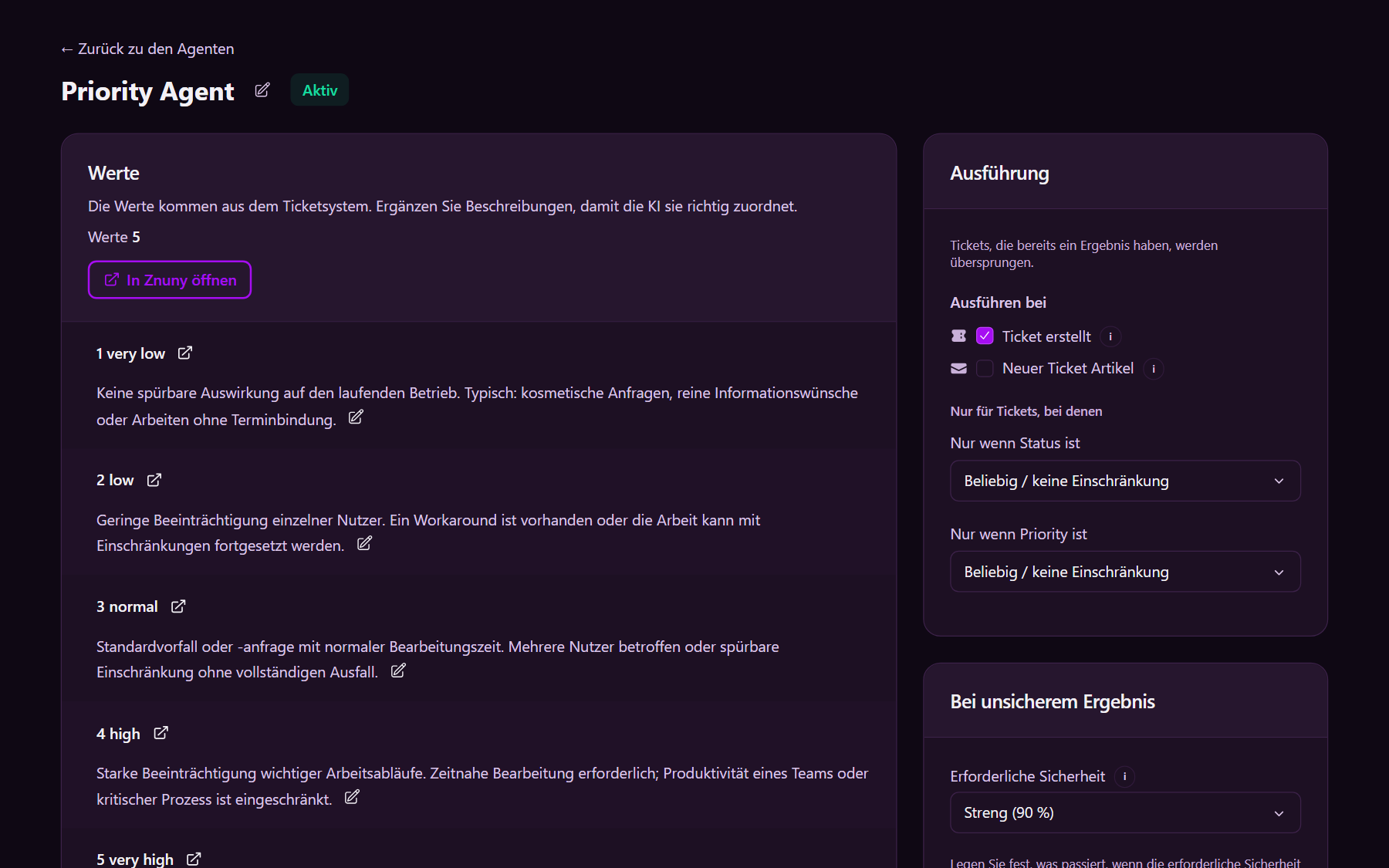
Priority classification. Sync the priority names already in the ticket system. Describe impact on the desk, not a medical score:
- Highest: a ward cannot register or look up a patient in the admin system right now
- High: today’s appointment desk is blocked
- Normal: a records request inside its usual deadline
- Low: a visiting-hours question that arrived as email
Set Minimum confidence to Normal (80%). Below that line, flag the ticket for human review. Leave the existing priority in place when someone has already set it.
Summarization. Write the summary into a DynamicField so the next person sees what was asked. The summary is a handoff note, not a chart entry.
Reply draft. Use it for appointment and records acknowledgements. Choose the Formal style. Runtime stores the subject and body. It does not send the article and does not close the ticket. A staff member reviews the draft and sends it.
Details: Classification agents, Summary agents, Reply draft agents.
Run conditions
On each ticket Agent, under Run conditions:
- When it runs: Ticket created.
- Only when state is:
new. - Only when the target field is empty, so a queue or priority a person already chose is kept.
- Save, then Activate.
An Agent with no run condition stays inactive. Chatbots do not use run conditions. They answer when someone writes in the chat.
Public chatbot
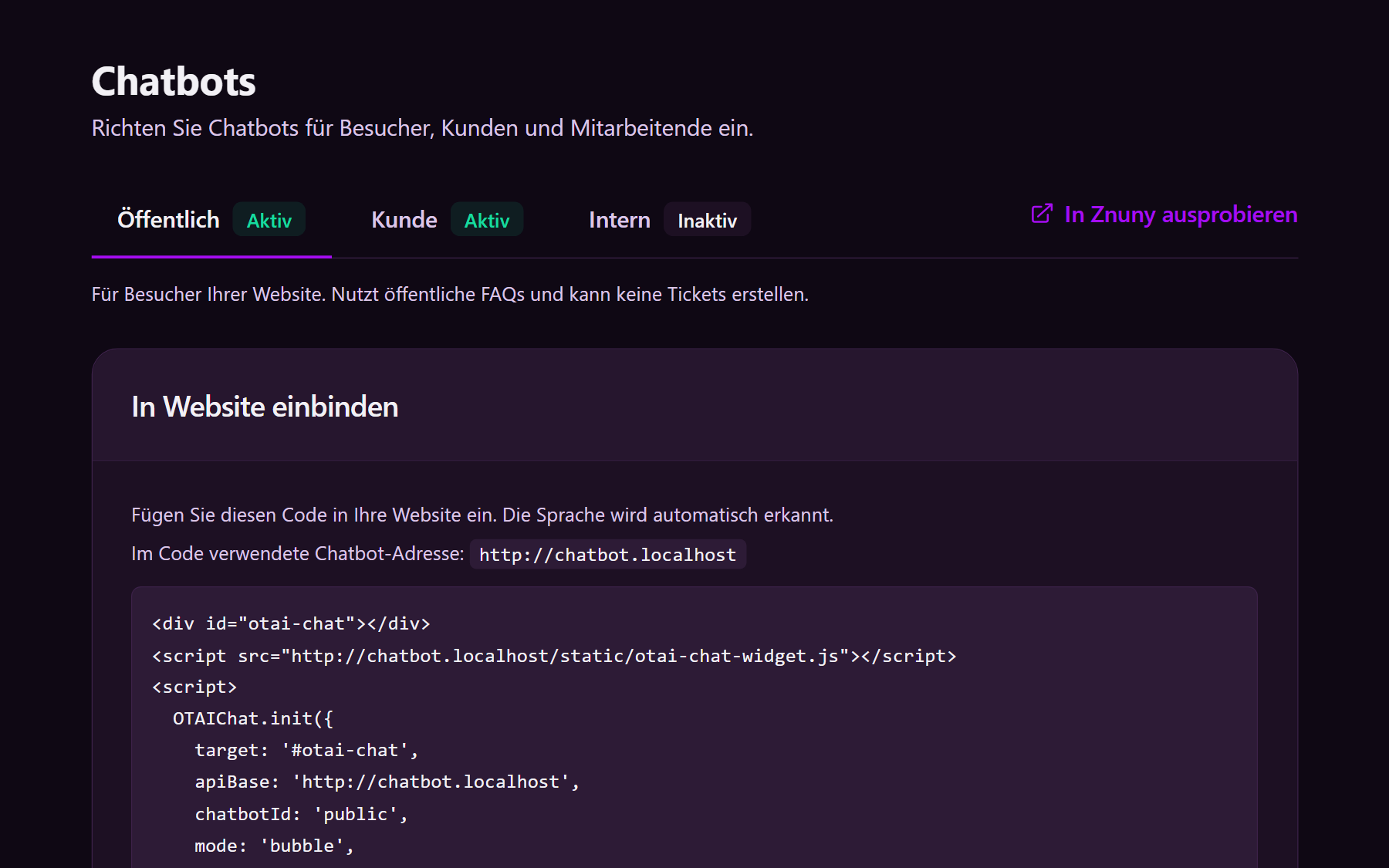
Under Chatbots, open Public, set it Active, and search Public FAQs only. Set allowed answers to a matching source, so replies stay on published articles.
FAQ articles live in the ticket system, not in Studio. See FAQs. Publish articles a visitor can read without an account:
- Visiting hours and how to find the ward
- How to book, move, or cancel an appointment (the administrative steps)
- How to request records: which form, which ID, where to send it
- Parking and how to reach the clinic
- A clear line that this chat answers from those articles and gives no diagnosis, treatment, or medication guidance
The public chatbot cannot create a ticket. Say that in the welcome message and point people to the patient portal, the published phone number, or the published email.
Customer and internal chatbots
Customer, for people signed in to the portal. Search the Customer FAQ area: how to check a records request, how to upload a referral. Allow Create ticket when the FAQ is not enough. See the customer chatbot.
Internal, for staff, opened as AI Chat in the ticket system. Search Internal FAQs: which queue owns admissions versus facilities, and how to read the summary DynamicField. Keep clinical guidelines out of this chatbot. See the agent chatbot.
Connectors for OTOBO and Znuny write the chosen queue, priority, and summary back to the ticket. Runtime on the hospital’s servers is what runs the Agents.