
University Helpdesk in OTAI Studio: Queues, Priorities, and Student Chatbots
Set up OTAI Studio for a university desk: queue and priority Agents, run conditions, and chatbots for dates, library hours, and enrollment.
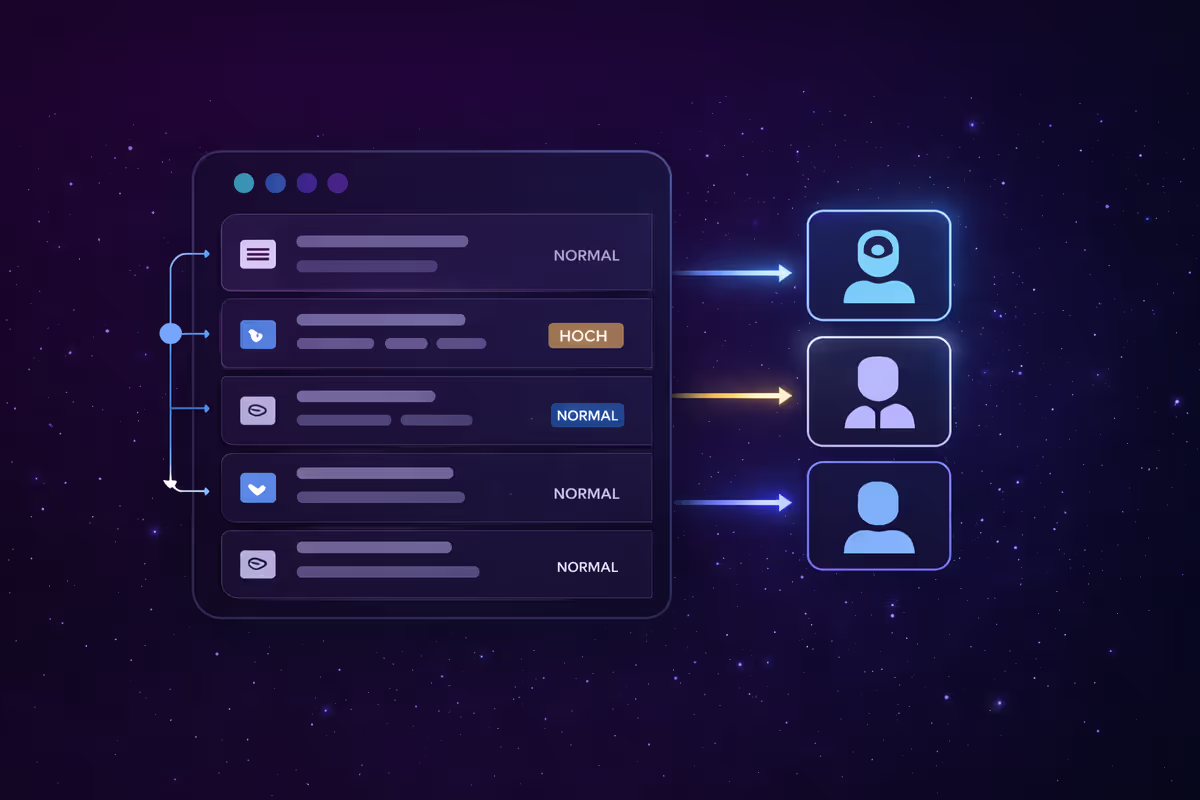
A university helpdesk receives the same requests every term: account lockouts, library holds, enrollment certificates, room bookings, and exam-office mail. OTAI Studio sorts that intake on the university’s own servers (Full On-Prem). It does not grade work, decide appeals, or close tickets.
Studio ships a demo called Example queue classification: university. It writes a sample DynamicField so you can see how descriptions look. For production, create a real Queue classification Agent and sync the queues that already exist in OTOBO or Znuny. On Zammad, classify Groups. Zammad does not use queues.
Agents to create
Open Agents. Describe each value in the language students actually write. Classification is zero-shot from those descriptions. There is no training on old tickets.
Queue classification. Example descriptions after you sync:
| Queue | When it applies |
|---|---|
| Student IT | Account, password, Wi-Fi, exam-platform login |
| Library | Loans, holds, room bookings in the library |
| Student office | Enrollment, leave of absence, certificates of study |
| Examinations | Registration windows, transcripts requests, board mail |
| Facilities | Lecture-room faults, access cards for buildings |
| Research office | Grant-inbox and project-admin mail, not scientific advice |
Priority classification. Sync the live priority names. Describe them by deadline pressure:
- Highest: exam platform or account lockout during a published exam window today
- High: enrollment action that blocks a deadline this week
- Normal: certificate or library request inside the usual processing time
- Low: a question about published opening hours
Minimum confidence: Normal (80%). Below that, flag for human review. See Classification agents.
Summarization. Store a short summary in a DynamicField so the student office and IT do not re-read the same thread. See Summary agents.
Reply draft. Use it for certificate and account acknowledgements. Formal or Short style. Runtime keeps the draft for a person to send. It does not send mail and does not close the ticket. See Reply draft agents.
Run conditions
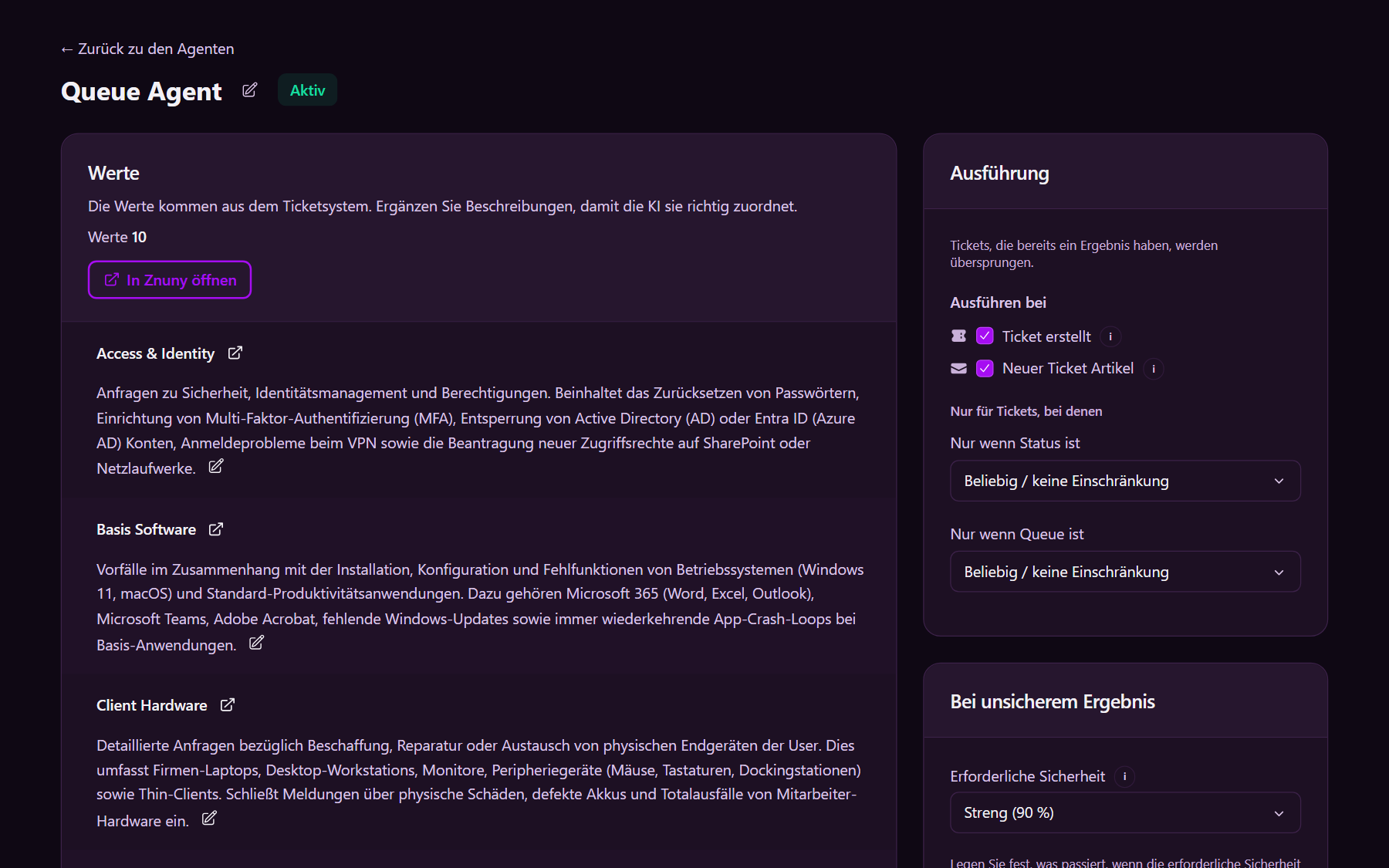
On each ticket Agent, open Run conditions:
- Ticket created
- Only when state is
new - Only when the target field is empty
- Save and Activate
A second faculty with its own ticket system gets its own Full On-Prem installation and its own Agents. One Studio workspace does not hold two universities.
Chatbots
FAQ text stays in the ticket system. Studio only chooses which area a chatbot may search. See FAQs and Chatbots.
Public (website bubble, visitors who are not signed in). Search Public FAQs only, and allow answers only from a matching source. Publish:
- Semester dates and enrollment windows
- Library hours and how to reserve a carrel
- How to start an enrollment or exmatriculation (the steps and the office, not a decision)
- How to request a certificate
- Campus visiting information
The public chatbot cannot open a ticket. The welcome text should point to the student portal or the published mailbox.
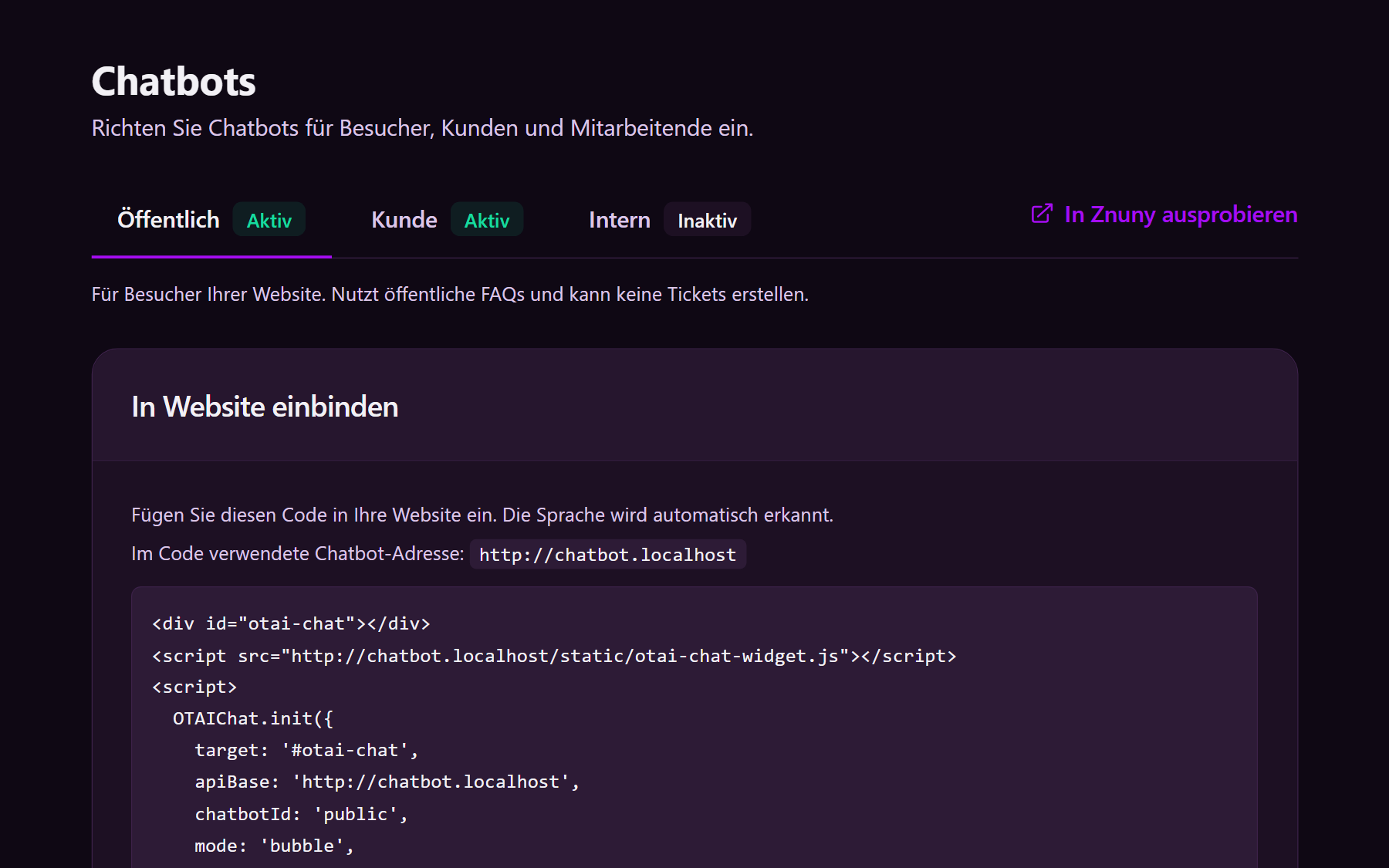
Customer, in the student portal. Search Customer FAQs: password reset that needs a signed-in account, status of a certificate request. Allow Create ticket when the article does not cover the case. See the customer chatbot.
Internal, for staff via AI Chat. Search Internal FAQs: which queue owns a certificate versus an examinations-board letter. See the agent chatbot.
A Free Cloud Trial is only for evaluation. The live desk is Full On-Prem, with OTOBO or Znuny writeback from Runtime on the university’s servers.